Showing posts with label Linux. Show all posts

Wednesday, January 12, 2022

How to create a video DVD in Linux from a HD video source

 These days, we are likely to record our videos in some high-definition format. Sometimes, however, it may still be convenient to provide the final cut of a movie on a DVD disk. This guide describes how to use your Linux PC to create a DVD disk from any source material.

The procedure consists of four simple steps:

  1. Rendering the source video to a lossless format
  2. Converting the result to a DVD compliant format (.vob)
  3. Authoring the DVD
  4. Burning the DVD
Step 1 is done in your favorite movie editor, steps 2 and 3 on the command line, and step 4 in a simple GUI. The goal here is to produce a simple DVD with a single video clip and without start menu, but with chapters.

1. Rendering the source video

Whatever video editor you are using, when you finished editing your video, you will probably render it to .mp4 or some other format. In principle, you could use this output file for the following procedure. However, to get the best DVD quality, it is helpful to render to a lossless format.
I am creating and editing my videos in Kdenlive and save the (intermediate) result with the lossless codec HUFFYUF.


Please note, that these files will be huge. A 2-hour video in 720p at 24fps took 120 GB. But this is only a temporary file - after step 2, you can immediately delete it. The file that I created this way is named "myvideo.mkv".

2. Converting the result to a DVD compliant format (.vob)

In this step we convert the video to a DVD compliant format (mpeg2 with special settings). Make sure that ffmpeg is installed on your system (check with: "which ffmpeg"). 
Open a text/terminal window, go into the folder that contains your intermediate file (in my case: "myvideo.mkv") and run ffmpeg like this:

ffmpeg -i myvideo.mkv -target ntsc-dvd -maxrate 8000000 -b:v 4100000 output.vob

This will produce the file "output.vob" which is needed for the next step. The above command produces a DVD in NTSC format. If you need PAL format, just replace "ntsc-dvd" with "pal-dvd". 

A DVD can hold video files of up to approx. 4 GB. The size of the output file is adjusted with the value after "-b:v". Smaller values produce smaller files. It should be adjusted to achieve the largest possible file size, while not exceeding 4.4 GB. The value of 4100000 worked well for me and produced a 3.9 GB vob file for my 2-hour video. 

3. Authoring the DVD

In this step, the final DVD files will be produced and stored in the folder "mydvd". It requires to install "dvdauthor". If you don't need chapters on your DVD, just run
  
dvdauthor -o mydvd/ -t output.vob

where "output.vob" is the result from step 2.).
It is also possible to create chapters (usually a good idea!) with the "-c" option. The "-c" option is followed by a comma (,) separated list of chapter markers, where each has the form [[h:]mm:]ss. The seconds have to be specified, while the minutes and hours are optional.
Here is an example if you want chapters at 35 seconds, 5:03 minutes, 21:45 minutes, and at 1 hour 3 minutes and 15 seconds

dvdauthor -o mydvd/ -t -c 00,35,05:03,21:45,1:03:15 output.vob

Then the video format needs to be stored in a shell variable (replace "NTSC" with "PAL" if required).

export VIDEO_FORMAT=NTSC

And the following finalizes the DVD file structure.

dvdauthor -o mydvd/ -T

The folder "mydvd" contains now all files needed for the DVD.

4. Burning the DVD

In this last step, the DVD is burnt, using the GUI k3b. After starting "k3b", you select on the bottom "more actions..."


... and in the pull-down menu a "New Video DVD project".


On the new screen, click on the "VIDEO_TS" folder...


... and paste all files from the folder "mydvd/VIDEO_TS" into the right area.


Finally, press "Burn". And a little later you will have your DVD.


Monday, November 1, 2021

How to play Flash swf files in Ubuntu Linux (works also for Windows and Mac)

 A long time ago, I found a wonderful animation that was available as a flash .swf file. In those days, I was able to play this on my Linux computer in Firefox.

These days, however, Flash is no longer supported and my old instructions do not work anymore. It took me a while to find the solution. But it's really simple and I want to share it here.

A player for Adobe Flash content is still available at the Adobe web page. I just seems that they do not really promote it, but you find it here:  https://www.adobe.com/support/flashplayer/debug_downloads.html

What you need is the "Flash Player Projector content debugger". This is available or Windows, Mac, and, ... ,yes: Linux. It comes as a .tar.gz file. Now, you either already know what to do, or, if not, just follow these simple step-by-step instructions:

  • Open a terminal, and create a new directory, maybe "flash", and enter it
    mkdir flash
    cd flash
  • Copy your .swf file(s) into this directory (using command line or file browser) .
  • Also copy the file that you downloaded from Adobe "flash_player_sa_linux_debug.x86_64.tar.gz" into this directory.
  • Unpack the file
    tar -xf flash_player_sa_linux_debug.x86_64.tar.gz
    Or, from the file browser: right-click on the file, and "extract here".
    Now you have the unpacked file "flashplayerdebugger"
  • Play your .swf file 
    ./
    flashplayerdebugger my-flash-file.swf
    (of course, replace "my-flash-file.swf" with the name if your .swf file).
    The "./" is needed! Otherwise the system will not find the executable.
And maybe you were wondering what file I wanted to play? It's still available on the web, here: https://7chan.org/fl/src/independent_woman.swf  (right-click, and "save as")

(yes, it's singing cats!)


Monday, October 18, 2021

How to create a Windows bootable USB drive on Linux

This error gave me some headache:

Cannot find C:\sources\install.wim

That was the error I got after I inserting a freshly created USB stick with a Windows 10 disk image for installation on a new (empty) PC that my son just assembled.

  • What went wrong?
    The file "install.wim" has a size of 4.6 GB, which is too large for a USB drive formatted in FAT32.
  • The solution:
    Format your USB drive in exFAT.
Whether this was your problem or not, here are the instructions, how to create a USB drive on a Linux computer for installing Windows. I did this for Windows 10, but it should work for any other version. I used a Kubuntu 21.04 system, but it should also work on any other Ubuntu-based Linux distribution.


Step-by-Step Guide

There are two tasks to be done: First, format the USB drive to exFAT, and, second, install the Windows .iso file.


Formatting a USB drive to exFAT 

These simple steps are all done on the command line.
  1. Download the Windows .iso file from Microsoft
  2. The following procedure require the"exfat-utils" which were not installed by default on my Kubuntu 21.04. You can install these from your software center (Discover, Muon, or whatever you prefer) or from the command line:         sudo apt install exfat-utils
  3. Insert the USB stick (at least 8GB) in your Linux system and mount it (e.g. from the file manager).
  4. Find the device ID of the USB stick. There are many ways how to do this. I use
    df -m
    from the command line. It displays all available filesystems, their status and their IDs  If you compare the output of this command before and after mounting the USB stick, you can identify the USB stick. For me it is: 
    /dev/sdb1   14798   5574  9224  38% /media/username/9B62-A3DF
    So, the device ID is "/dev/sdb1".  Sometimes my USB drives are also mounted as "/dev/sdc1". Remember this device ID!
  5. Unmount the USB drive, either from the filemanager (right click, "safely remove") or from the command line (replace "/dev/sdb1" with your device ID, if different):
    umount /dev/sdb1 
  6. Format the USB drive to ExFat (again, replace "/dev/sdb1" with your device ID, if different):
    sudo mkfs.exfat /dev/sdb1
  7. Mount the freshly formatted USB drive (you may have to remove and re-insert it).


Install the Windows .iso File

Now, there are different options, how to install the Windows .iso file on the USB drive, either using the File Manager, or the "unetbootin" app. (Of course, you only need to do one of the two).
  1. I prefer using the File Manager, which does not require to install any additional software. For this, open the Folder in which you stored the Windows .iso file that you got from Microsoft. Right-click on the .iso file and select "Mount ISO". A new entry will show up on the left bar in the File Manager (with a weird name). Click on this, and the File Manager will display the content of the .iso file
     

    In a second instance of the File Manager, open the (empty, freshly formatted) USB drive. Then, using the mouse, select all the files from the .iso and copy them over to the USB drive. This will take a few minutes (after all these are >5 GB).
    The following  is not necessary, but as a cross check you may want to enter the folder "sources", hover the mouse over the file "install.wim" and confirm that its size is 4.6 GB.


  2. Alternatively, you can get "unetbootin" from here: https://unetbootin.github.io/. Download the version for your OS (for me it was "Linux", "64 bit binary"). In my case, the downloaded file has the name "unetbootin-linux64-702.bin" (which may differ for future releases) and it's stored in the directory "~/Download". After mounting your USB drive, you run:
    sudo ~/Downloads/unetbootin-linux64-702.bin
    During startup, I get some error messages mentioning "Arch Linux" and "mtools" which I just ignore (just press "ok"). This opens the following window.
    Here, you select (1.) "DiskImage", (2.) select the Windows .iso file, select (3.) "USB Drive" and (4.) your drive ID ("/dev/sdb1" or correspondingly), and (5.) press "OK".
This worked for me, and my son is now happily running Windows on his new PC.
Please let me know in the comments, if it helped you or if you ran into any problems.

Friday, August 7, 2020

Accessing Google Docs with KDE in Kubuntu Linux

Some years ago, I started using Google Docs as an easy way to access documents between different Linux computers and/or Android tablets. At some point, however, it became too annoying to access these documents only through the web browser on the Linux computers, and I basically stopped using Google Docs. But now, as I was setting up a new laptop computer with the most recent long-term support version of Kubuntu (20.04 LS), I thought it was worth investigating if there was a better solution. And I found one that lets me share images (jpg, png ,..), pdf files, and access text documents (with a few restrictions, see below) from both the Android tablet and the Linux PC.

Installation and Setup

The required software is "KIO GDRIVE" https://community.kde.org/KIO_GDrive.
It can be installed either from a package manager (I'm using Muon)...

... or directly from the command line

     sudo apt install kio-gdrive


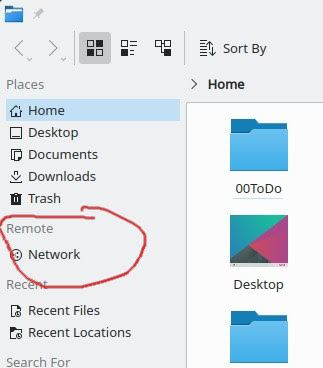
Once this is installed, the next steps are rather straightforward. Open the Dolphin file browser, and click on "Network", ...
... select "Google Drive", ...
... and "Add new Account".
Select the type of account: "Google" ...
Important: In the following steps, it happened quite a few times that I got empty windows and, initially, I was about to give up. But accidentally, I figured out that resizing the window and/or reloading (right click -> reload) helped. Keep this in mind!! 

Then, the "Sign in" window opens and you insert the email address from your Google account. 
After hitting "Enter", the next window is asking for the corresponding password.
The next window displays the newly added account.
Selecting the account and pressing "OK", brings the next window which asks you to select the account. 
From there you get to window that asks you to confirm that you will get access to all files on the Google Drive.
Scroll down, and confirm.
Everything is set up now - press "Done".
The "Accounts" window is showing your email address and, below, the name for this account. In my case, it was called "google9" (for some reason, I deleted that account and when I repeated the procedure, it was called "google10" ). When you select it, and click "OK"... 
... you see the available services (here: Google Drive and YouTube) which can be de-selected. 
After pressing "OK" you are done - everything is set up!
Now, if you open Dolpin, and click in the left column on "Network", you see the new network folder "google9". When you click on this, you see all the files in your Google Drive.

To make the access a (little) easier, you can right-click on the new folder, and select "Add [...] to Places".
Now the Google Drive folder shows up directly on the left side in Dolphin, and it takes just a single click to access it.
  

What works - and what doesn't?

It took me a little while to figure this out. 

Yes: .jpg/.png Images and .pdf Files

When clicking on any image (.jpg or .png) in Dolphin, the image opens in Gwenview - great!
When clicking on any .pdf file in Dolphin, the file opens in Okular - great! 
In the Android Google Docs app, these formats work too

Not: Google Doc Text Documents and Spreadsheets .odf/.ods 

My first hope was that I would also be able to click on any text document that I created in Google Docs and be able to edit it. Nope! Does not work. A text file that I created inside Google Docs "test.odf" does not open. When I click on it in Dolphin, I just get a weird error message. The same happens for spreadsheets.

Simple .txt Text Files - somehow yes, but ...

Then I checked if this works for simple text documents. In Dolphin, right-click: "create new ... text file" - click opens the empty file in Kate - I typed a few words and saved it: test.txt. And, yes, the file is saved in the Google Drive. And if you have a second Linux computer, you will be able to access the file and save it again. But I want to access these files on my Android tablet. And if I enter the Google Doc app on Android, it will not directly open the .txt file. Instead, it opens another application (Polaris office in my case) where I can edit the document. But from there, I can not directly save it to the Google Drive. I can only save it to the Android file system, and from there share to Google Drive. While this works in principle, this is too complex for my everyday workflow.
And it's even worse, if you click on the document from the Google Doc web-interface. First, it will only display the content in view-only mode. Once you select "edit", you are able to edit the text. But you can not save it back to a simple .txt file - if you save it, it gets saved in .odf format as as test.txt.odf - and, as discussed above, you will not be able to access the updated file from Dolphin.

Best way to share Text Files: The .docx Format

The best option that I found for using Android and Kubuntu to work on a common document is the .docx format. You can not create such a document on the Google Drive. Instead, you create the initial document either on Linux (from Libreoffice) or an Android (using an office package like Polaris Office, or any other) and save it in the .docx format. From Android, it can then be shared to Google Drive, or from Linux it is simply moved in Dolphin to the Google Drive folder.
In Linux: From Dolphin you click on the document to open it (in Libreoffice), and when you save it, it is save and uploaded to Google Drive.
On Android: In the Google Doc app, you can access and edit the document, and any changes are saved in Google Drive.
Please note, however, that this does not allow you to work simultaneously on the document. Before working on Linux, it has to be saved on Android - and vice versa. But for my personal workflow, I do not require this feature.
And there is one more thing: Be careful when editing offline on Android! If you do offline editing on Android, when the file is ultimately saved to the Google Drive, all intermediate edits that you made on Linux will be ignored. So, if you really need offline editing, make sure that everything is saved before accessing the file from Linux.